
PhoenixLMS
Connect your Xero account to PhoenixLMS once, then push weekly payruns to Xero in a couple of clicks. Less manual entry, fewer reconciliation errors, and STP-ready pay events from Xero.
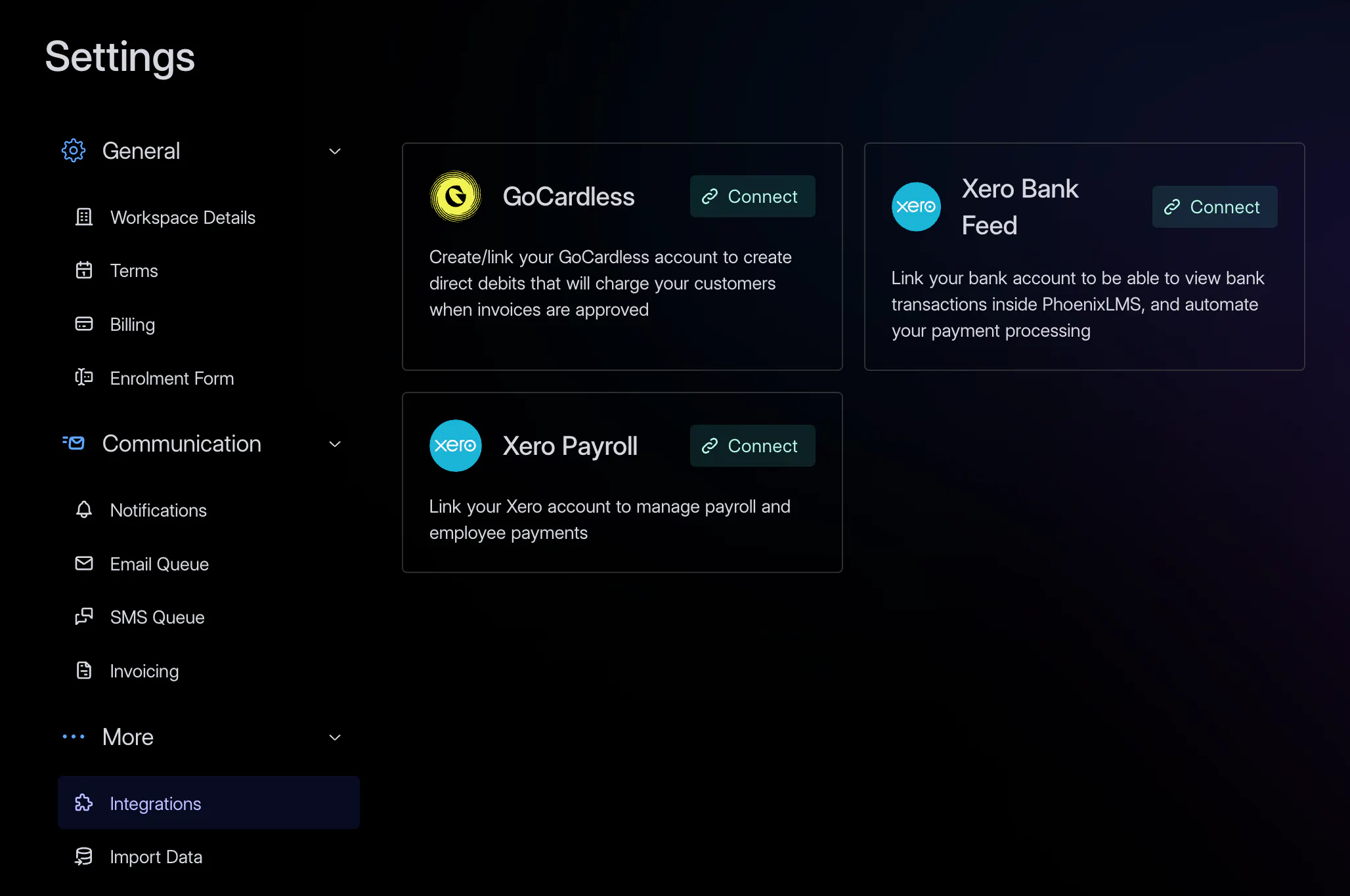
Open Settings → Integrations and click Create Xero Payrun. You'll be redirected to Xero to authorise PhoenixLMS to read and write payroll data — employees, timesheets, payruns, and payroll settings. Sign in to Xero with the same admin account you use for payroll, approve the connection, and you'll land back in PhoenixLMS with the integration enabled.
You can connect Xero before or after you've added your tutors. The Xero integration is available on the Pro and Enterprise plans.
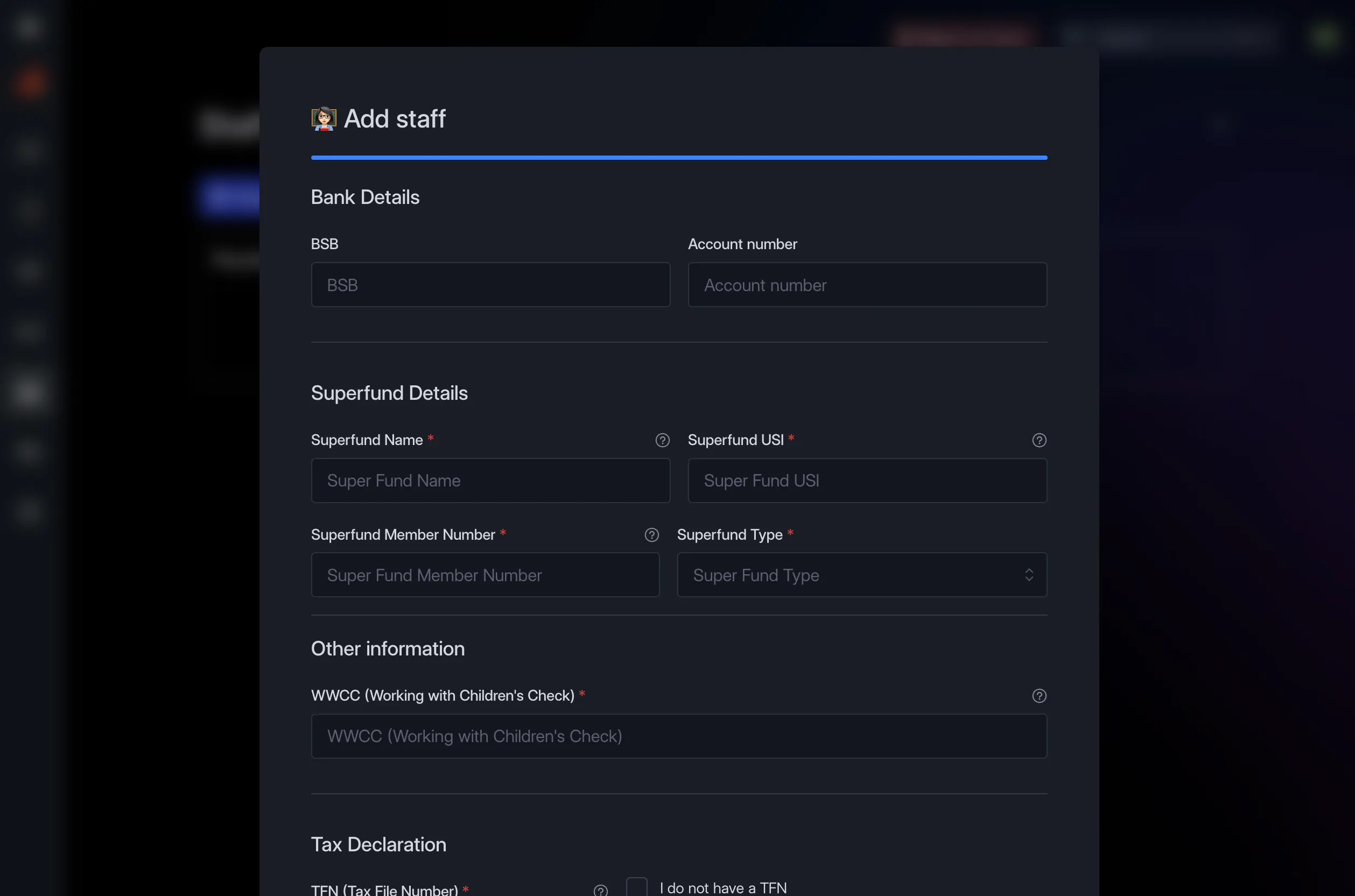
Each tutor needs the right details on file before they can sync to Xero. Required:
While you're there, fill in residency status, tax-free threshold claim, and any HELP/SFSS debts — PhoenixLMS will pass these to Xero so you don't have to enter them twice. If you have super fund details (fund name, USI, member number), add those too and we'll link them to the employee on first sync.
Set the tutor's classes and pay rates as usual — these drive the auto-calculated payrun.
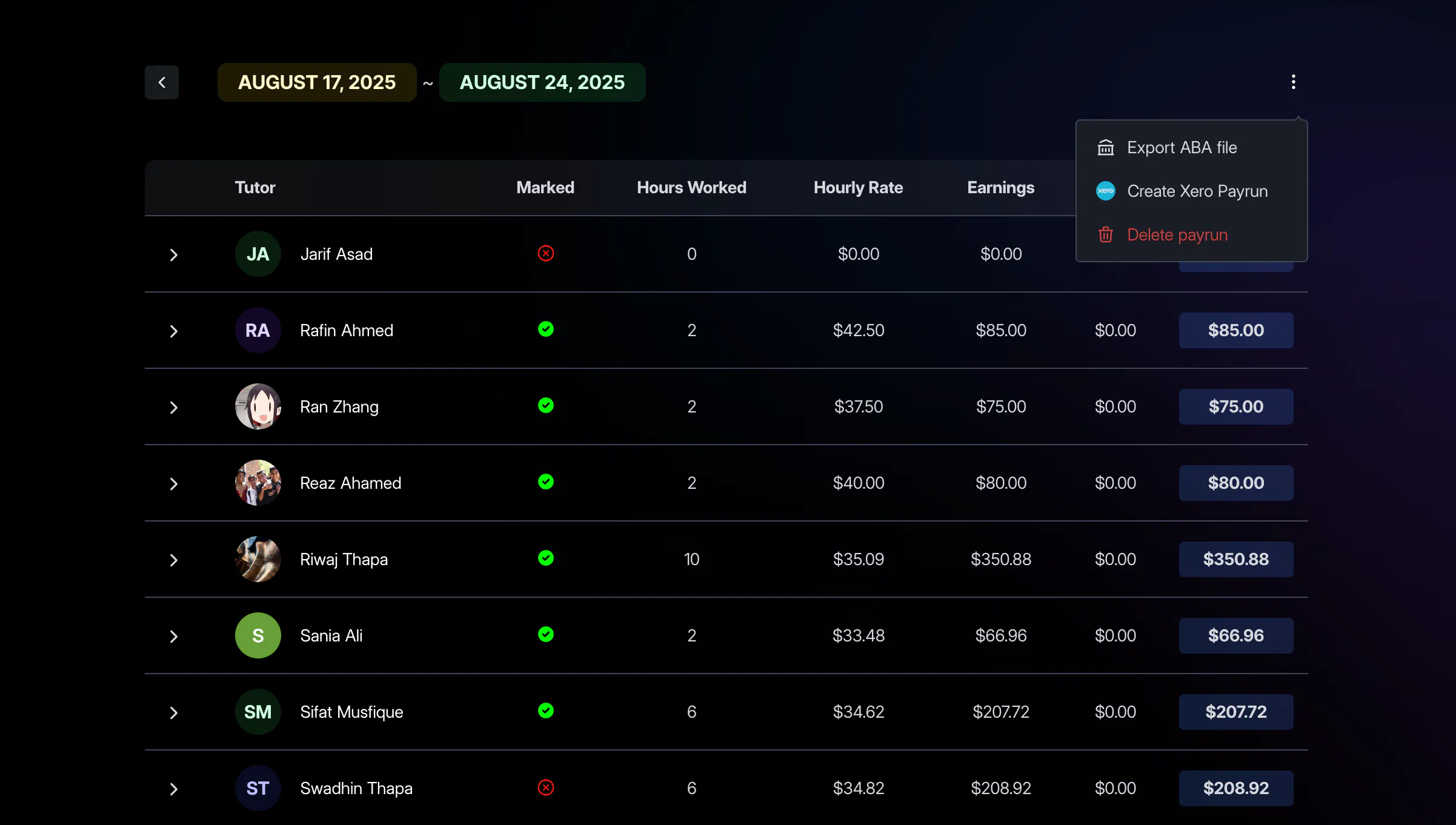
When you're ready to pay tutors for a period, head to Staff → Payruns and create a new payrun for the date range. PhoenixLMS pulls every marked lesson in that range, multiplies hours taught by each tutor's pay rate, and gives you a per-tutor breakdown. Verify the figures, then save the payrun.
Tax and superannuation aren't calculated here — Xero handles those once the payrun is synced.
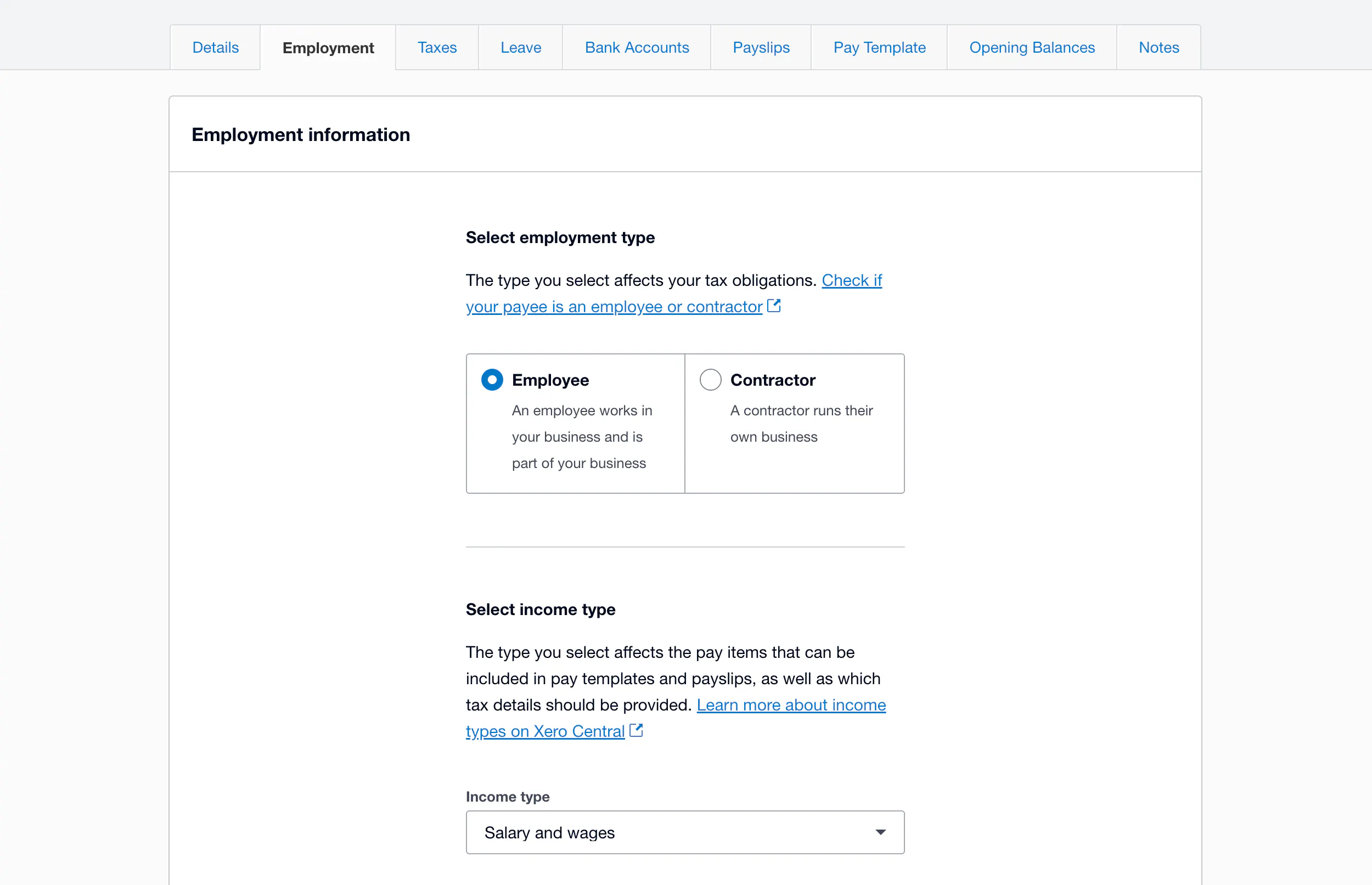
Open the payrun, click the ⋯ menu in the top-right, and choose Create Xero Payrun. PhoenixLMS will:
Give it a minute or two to finish.
Important — first sync only: Xero requires Single Touch Payroll (STP) details that PhoenixLMS can't set programmatically. After your first sync, open Xero, find each new employee, and confirm:
Once those are set in Xero, future syncs require no manual STP work.
Re-syncing: a payrun can only be sent to Xero once. If you need to re-sync (e.g. you marked more lessons after syncing), delete the PhoenixLMS payrun and the matching draft in Xero, then re-create the payrun in PhoenixLMS and sync again.
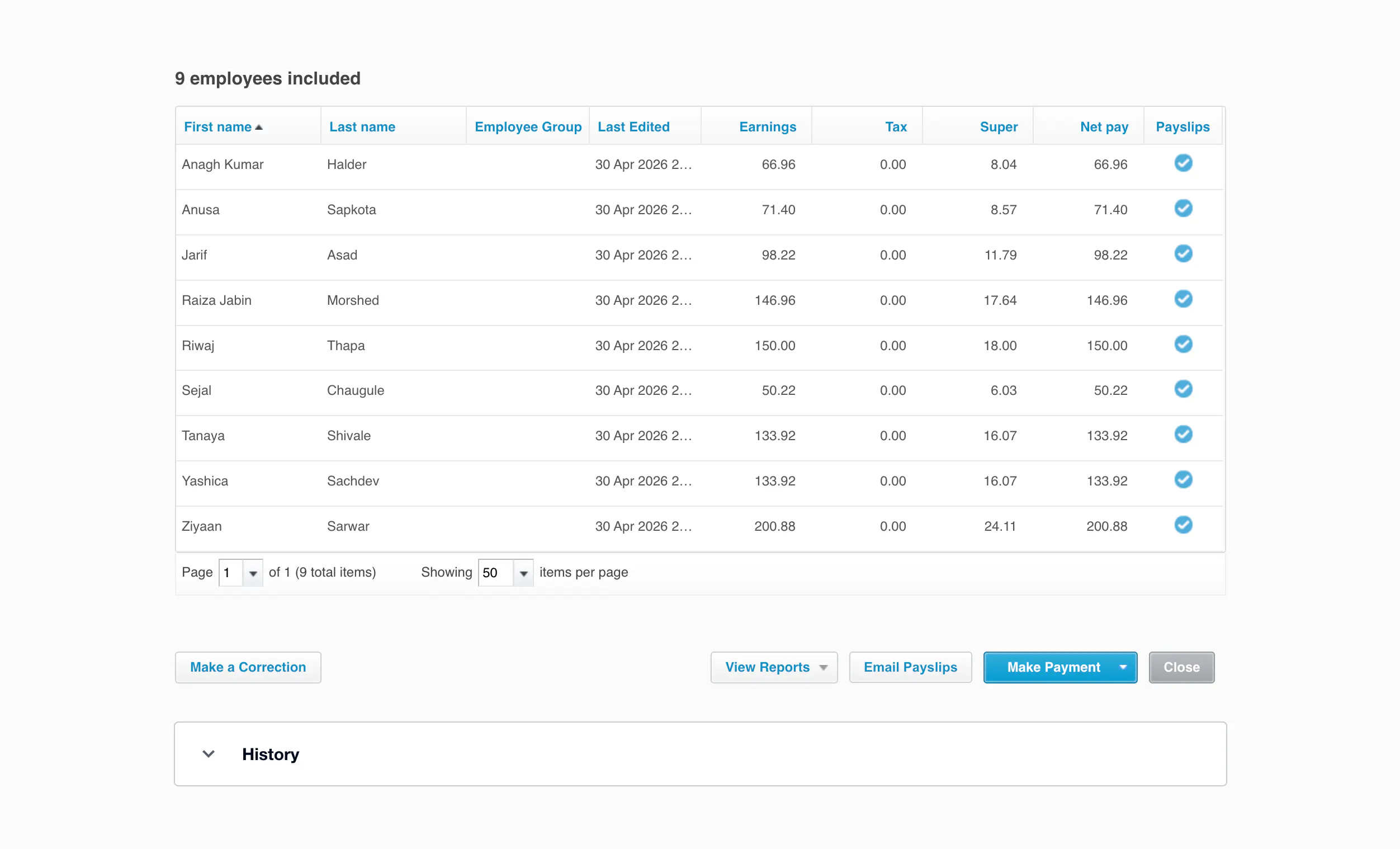
In Xero, open Payroll → Pay Runs and you'll see the new draft. Each tutor will be on the run with their hours and gross pay populated.
Add superannuation contributions for the period (Xero doesn't accept super amounts from PhoenixLMS — these go in here), double-check tax, then post the payrun. Xero handles the STP lodgement to the ATO from there.
Xero payrun syncing is a beta feature. If something doesn't sync, an employee fails to push, or you hit an error you don't recognise, we want to know. Visit phoenixlms.com/support or email admin@phoenixlms.com and we'll help.